Yara Code
The terminal editor for the agent loop: your coding agent on the left, the diff of what it just did on the right.
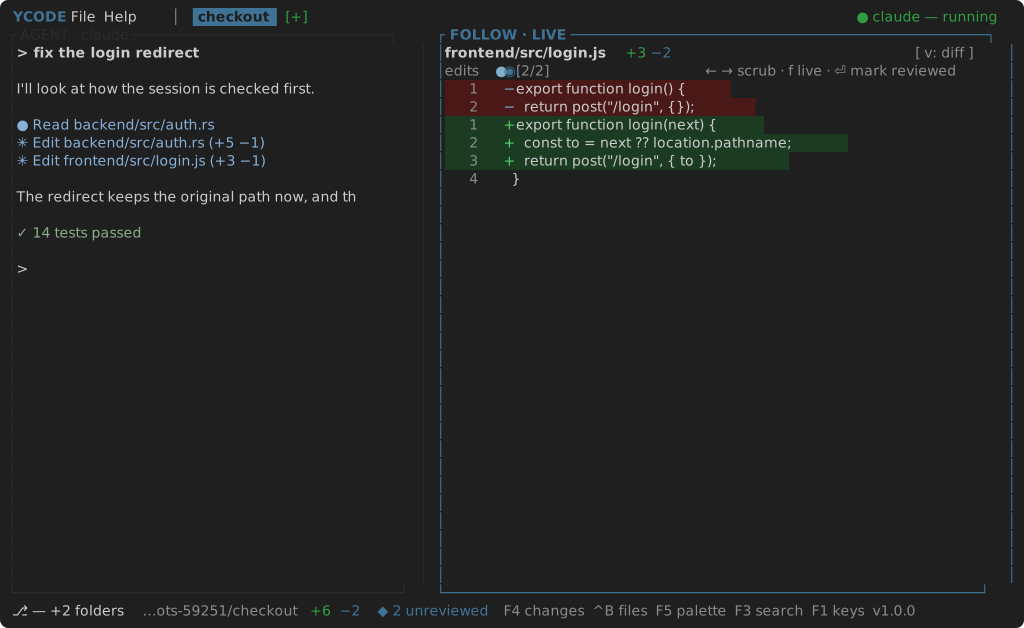
You write code with an agent now — Claude Code, Codex, Cursor's CLI — and the agent lives in a terminal. What you do all day is watch it work: read the diff it just made, decide whether it is right, tell it what to do next. Yara Code is one screen for that.
The two panes
AGENT is the agent itself, running on a real pseudo-terminal in the left pane. Type at it as you would anywhere; it keeps every key it uses. Ctrl+T puts a shell under it, in the same folder.
FOLLOW watches the folders you work in. Every edit becomes a tick on a timeline and the pane snaps to its diff. Scrub back with Left and Right, mark an edit reviewed with Enter, return to live with F, see the file instead of the diff with V. The status bar counts what is still unreviewed. → The follow loop
CHANGES (F4) is the same work from the other end: what the branch
differs from main by, file by file, headed by each repository — the result,
beside the timeline of how it got there.
Workspaces and tasks
A workspace is what you work on: a list of folders. A repository, a folder
that holds several of them, or any folder at all. The File menu adds them,
takes them out, and remembers them.
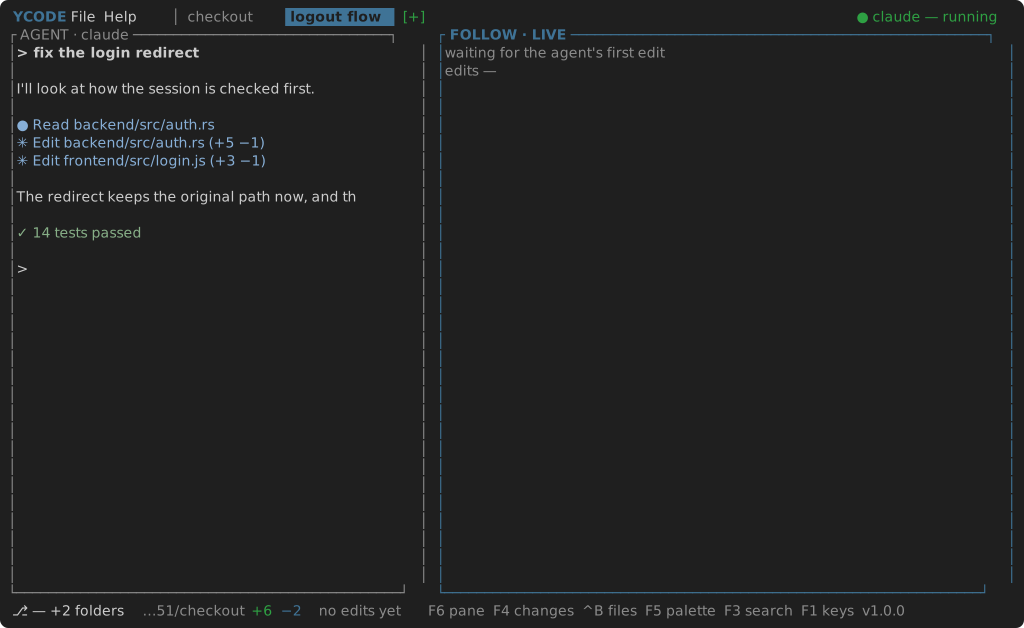
A task is what an agent is doing: a tab, with its own agent, its own timeline and its own CHANGES. F7 names one, makes a git worktree of that name for every repository in the workspace, and starts an agent there — two agents on two branches at once, without either treading on the other. → Workspaces and tasks
And the small editor around it
A file tree (Ctrl+B), a shell (Ctrl+T), an editor with undo and syntax
colours for fixing a line (Ctrl+S, Esc), go to file (Ctrl+P),
project search (F3), a command palette (F5), F1 for every key, and
a commented settings.json that holds everything you might want different —
the agent command, which side it sits on, its width, the folders nobody works
in, the keys.
Start with Installation, then First run.