First run
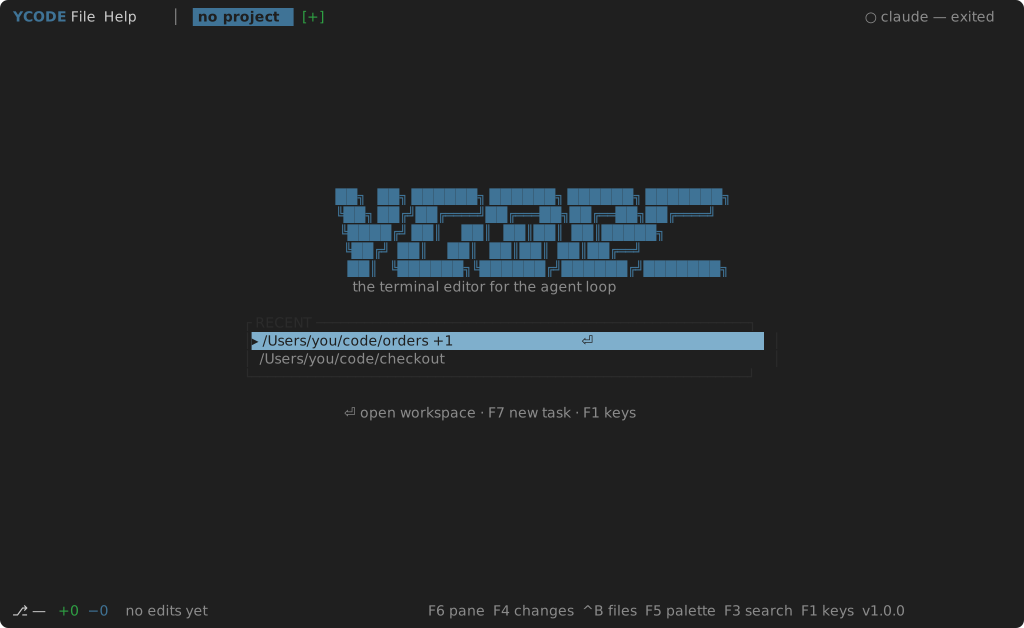
ycode # the terminal frontend, with no project
ycode ~/code/project # opens that folder
ycode-gui ~/code/project # the same editor, in a window


The start page
Launched without a path, Yara Code opens with no project. The editor shows a
start page: the name, the folder in play (or "no folder in the project"), and
the key bindings actually in effect, grouped — Project, Edit, Panels, More.
Because it is built from your settings.json, it never shows a chord you
rebound. It is a reference card, not a menu: the keys it lists are the way to
do what it names.
Two ways to put a folder in:
- Open Folder… (
Cmd+Shift+O/Ctrl+Shift+O) — switches the project to that folder. - Add Folder to Project… (
Cmd+Shift+A/Ctrl+Shift+A) — adds one alongside whatever is already open. See Project folders.
In the window these open the system dialog — Finder on macOS, Explorer on Windows. The terminal frontend has no system dialog to call, so it opens a file browser of its own: → walks into a folder, ← back out, Enter picks what the cursor is on, and Tab switches to typing the path instead.
The layout
Both frontends draw the same thing:
- A top bar with the YCODE label and the File, View and Help menus. On macOS those menus are in the system menu bar instead, where a Mac keeps them, and the window has no strip of its own — Settings and Quit move to the Yara Code menu beside them, as they do in every Mac application.
- A sidebar on the left with three views —
FILES,SEARCH,GIT— switched in its footer or withCmd+Shift+E/Cmd+Shift+F/Ctrl+Shift+G. - The editor with its tab strip, and the find bar when it is open.
- A terminal panel under the editor (
Cmd+J/Ctrl+J). - A status bar: the file, whether it is modified, git blame for the line under the cursor, the cursor position, the language and the theme.
Panes are resizable in both: drag the border between the sidebar and the editor, or the one above the terminal.
Getting around
Cmd+Pis not a thing here — files are opened from the navigator, from search results, or with Open File….F1shows every binding in effect.- The terminal frontend cycles panes with Tab / Shift+Tab and is fully mouse-driven: click to focus, right-click for the context menu, drag rows to move files, drag tabs to reorder them.