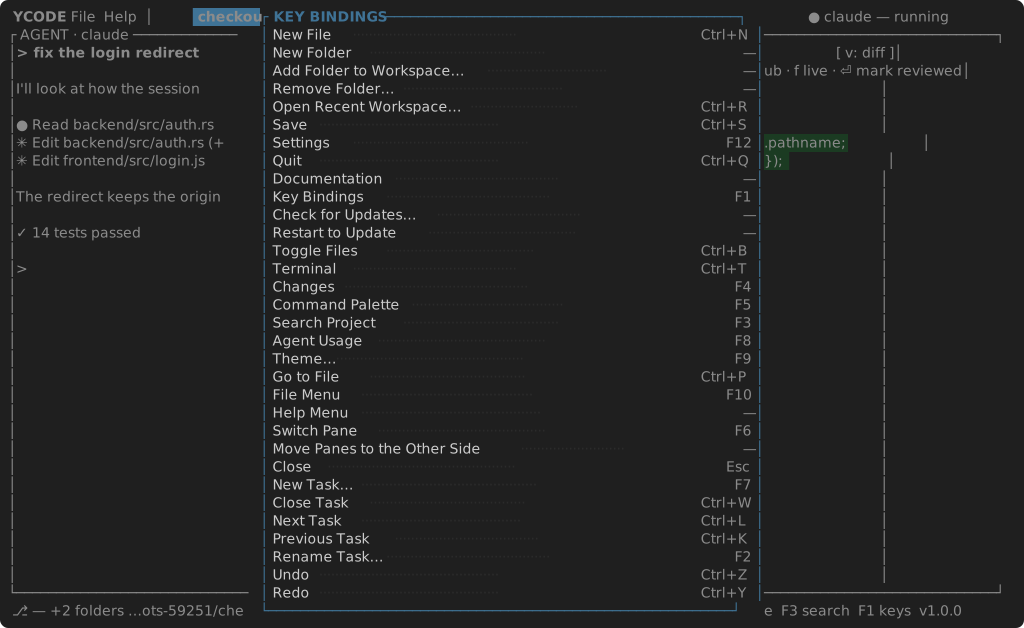
Key bindings
Defaults follow VS Code on macOS (which Zed broadly matches); the terminal
frontend uses the same chords with Ctrl in place of Cmd, and Ctrl+Shift
where the window has Cmd+Shift. Every command is rebindable in
settings.json — the table is what you get out of the box.
F1 shows the whole table inside the editor. It is generated from the same bindings the editor dispatches on, so it never lists a chord you rebound.


| Action | GUI | TUI |
|---|---|---|
| New file / Open file | Cmd+N / Cmd+O |
Ctrl+N / Ctrl+O |
| Open folder / Add folder to project | Cmd+Shift+O / Cmd+Shift+A |
Ctrl+Shift+O / Ctrl+Shift+A |
| Open recent | Cmd+R |
Ctrl+R |
| Save / Save As… / Save All | Cmd+S / Cmd+Shift+S / Cmd+Alt+S |
Ctrl+S / Ctrl+Shift+S / Ctrl+Alt+S |
| Settings | Cmd+, |
Ctrl+, |
| Close tab / Close all tabs / Quit | Cmd+W / Cmd+Shift+W / Cmd+Q |
Ctrl+W / Ctrl+Shift+W / Ctrl+Q |
| Command palette / Go to file / Go to line | Cmd+Shift+P / Cmd+P / Ctrl+G |
Ctrl+Shift+P / Ctrl+P / Ctrl+G |
| Undo / Redo | Cmd+Z / Cmd+Shift+Z |
Ctrl+Z / Ctrl+Shift+Z |
| Find in file | Cmd+F |
Ctrl+F |
| Search / Files / Git sidebar | Cmd+Shift+F / Cmd+Shift+E / Ctrl+Shift+G |
Ctrl+Shift+F / Ctrl+Shift+E / Ctrl+Shift+G |
| Toggle sidebar / terminal | Cmd+B / Cmd+J |
Ctrl+B / Ctrl+J |
| New / close terminal | Cmd+Alt+T / Cmd+Alt+W |
Ctrl+Alt+T / Ctrl+Alt+W |
| Theme picker | Cmd+Shift+T |
Ctrl+Shift+T |
| Indentation picker | Cmd+Alt+I |
Ctrl+Alt+I |
| Markdown preview | Cmd+Shift+V, or ◫ Preview on the tab strip |
Ctrl+Shift+V, or click ◫ Preview |
| New folder / Rename / Move to… | Cmd+Alt+N / F2 / Cmd+Alt+M |
Ctrl+Alt+N / F2 / Ctrl+Alt+M |
| Delete | Shift+Delete |
Shift+Delete |
| Find next / previous | Cmd+G / Cmd+Shift+G on macOS, F3 / Shift+F3 elsewhere |
F3 / Shift+F3 |
| Replace all in file | Cmd+Alt+Enter |
Ctrl+Alt+Enter |
| Repository / worktree picker | Cmd+Alt+G / Cmd+Alt+K |
Ctrl+Alt+G / Ctrl+Alt+K |
| Go to definition | F12, Cmd+click |
F12, Ctrl/Alt+click |
| Back | Ctrl+- on macOS, Alt+← elsewhere |
Alt+← |
| Previous / next tab | Ctrl+PageUp / Ctrl+PageDown |
Ctrl+PageUp / Ctrl+PageDown |
| Fold / unfold | Cmd+Alt+F |
Ctrl+Alt+F |
| Fold all / unfold all | Cmd+Alt+0 / Cmd+Alt+9 |
Ctrl+Alt+0 / Ctrl+Alt+9 |
| Select all / copy / cut | the text widget's own; Cmd+C also copies a selection in the terminal panel |
Ctrl+A / Ctrl+C / Ctrl+X |
| Paste | Cmd+V (the text widget's own, plus an image into the terminal) |
Ctrl+V |
| File / View / Help menu | click — in the macOS menu bar, in the window elsewhere | F10 / Alt+F10 / Shift+F1 |
| Context menu | right click | Shift+F10 |
| Key bindings overlay | F1 |
F1 |
| Switch query / exclude box | click the field | Ctrl+Shift+F again |
| Switch find / replace field | click the field | Tab |
| Cycle panes | — | Tab / Shift+Tab |
VS Code's two-key chords (⌘K ⌘0 and friends) have no counterpart here, so
folding, the theme picker and Add Folder to Project use a single chord of their
own; everything else is the binding you already know.
Telling Ctrl+Shift+S from Ctrl+S needs the kitty keyboard protocol. The
terminal frontend asks for it at startup and gets it in iTerm2, Kitty, WezTerm,
Ghostty, Alacritty — and in Yara Code's own terminal, which speaks it in both
frontends, so ycode runs inside ycode-gui with every chord it has. In a
terminal without it (macOS Terminal.app, and the browser terminals such as
ttyd), rebind that handful of commands to something plainer in settings.json
— the status bar says so at startup when the protocol is missing. Bindings that
collide are reported there too, naming both commands.
In the navigator
In the terminal frontend: arrows or j/k move, Enter opens or expands,
a new file, A new folder, r rename, d delete, Shift+F10 opens the
context menu (which also carries Move To…).
Both navigators look and behave the same: a FILES / SEARCH switch in the
header, ▸/▾ for folders and ▫ for files, the selected row filled with the
selection color, hover highlighting, the drop target filled with the accent
color, and the identical context menu — Open · New File · New Folder · Rename ·
Move To… · Delete.
Panes are resizable in both: drag the border between the sidebar and the editor, or the one above the terminal. The border lights up under the pointer and while being dragged.
The terminal frontend mirrors the window's layout throughout: a top bar with the
YARA label and the File menu separated by a rule, the sidebar down the left, the
terminal under the editor only, the same start page in an empty editor, a TERMINAL
panel header that brightens when the panel has the keyboard, and a status bar
carrying the file, cursor position, indentation, language and theme — the
indentation and the theme are clickable in both. Key bindings live in an
overlay (F1), not along the bottom edge.
Mouse (terminal frontend)
The terminal frontend is fully mouse-driven, mirroring the GPU window:
- Left click — select and open a file, expand a folder, focus a pane, place the text cursor, switch tabs, pick a search result or a prompt entry.
- Click the tab marker — closes that tab. It shows a dot while the buffer has unsaved changes and turns into a cross when the pointer is over the tab.
- Shift+hover in the editor — blames the line under the pointer in the status bar, leaving the caret where it is.
- Ctrl+click / Alt+click in the editor — go to definition. Two modifiers because some terminals grab one of them: macOS Terminal turns Ctrl+click into a right click, so use Alt+click there.
- Right click — context menu on the row under the pointer: Open, New File, New Folder, Rename, Move To..., Delete. A folder also offers Add Folder to Project, and a folder the project already holds offers Remove Folder from Project in its place, instead of the on-disk operations. On an editor tab the right button offers Close Tab and Close All Tabs — as it does on a diff or markdown preview tab, which are tabs like any other; on a terminal tab it renames the session.
Shift+F10— the same menus from the keyboard, for the terminals that keep the right button for a menu of their own and never report it: iTerm2 and macOS Terminal both do, and there the right button reaches the emulator, not Yara Code. The menu that opens is the one the focused pane would open under the pointer — the navigator's row, the tab in front, or the terminal's own name. Arrows and Enter drive it, Esc or a click outside dismisses it.- Drag and drop — press a navigator row and drag it onto a folder to move it; the target folder highlights, and dropping on empty space moves to the project root. Editor tabs and terminal tabs drag along their own strip to reorder.
- Hover — rows and tabs light up under the pointer.
- Wheel — scrolls whichever pane is under the pointer, four rows a notch;
scroll_speedin settings.json moves that either way.
Icons use Unicode by default; set YARA_ASCII=1 for terminals with sparse
font coverage. Since the app captures the mouse, use your terminal's usual
override (Shift+drag in iTerm2, GNOME Terminal, Windows Terminal) to select
text for copying.
Rebinding
Bindings live in settings.json under keys, keyed by the command's id:
Chords are written as "Cmd+Shift+F", "Ctrl+-", "Alt+Left", "F12",
"Shift+Delete". Modifier spellings are forgiving: cmd/command/super,
alt/option, ctrl/control.
What you leave out keeps its default, and a chord bound to two commands is reported in the status bar at startup, naming both.
Every command id is listed in the bindings overlay (F1), which shows what is
actually in effect rather than what the documentation hopes for.